Descriptive statistics are usually the first results you examine after preparing your data in SPSS. They help you understand your sample, summarize your main variables, and identify values that may need further investigation before you run tests such as t tests, ANOVA, correlation, or regression.
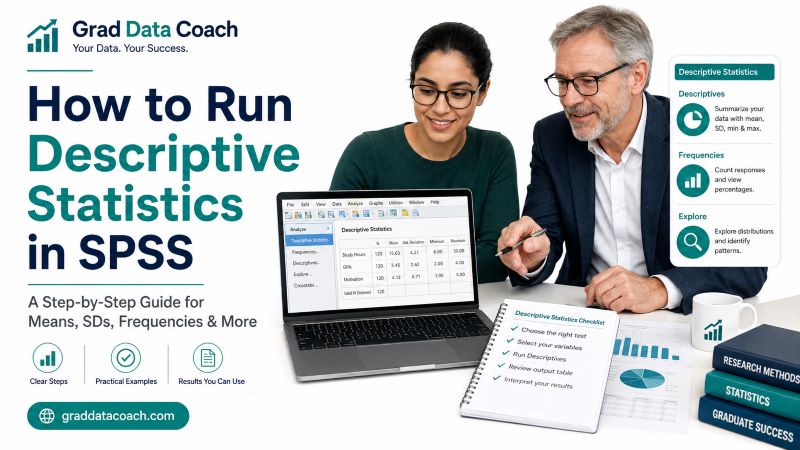
In this guide, you will learn how to run descriptive statistics in SPSS using Descriptives, Frequencies, and Explore. We will explain when to use each procedure, which options to select, and how to interpret the output. You will also see how to obtain means, standard deviations, frequencies, percentages, medians, ranges, and descriptive statistics for separate groups.
By the end, you should know which SPSS procedure fits your data and how to turn the output into useful results.
Which SPSS Descriptive Statistics Procedure Should You Use?
SPSS gives you several ways to calculate descriptive statistics. The best procedure depends on the type of variable you are describing and the information you need.
| What you need | SPSS procedure |
|---|---|
| Mean, standard deviation, minimum, and maximum | Descriptives |
| Frequencies and percentages for categorical variables | Frequencies |
| Median and mode | Frequencies |
| Quartiles and percentiles | Frequencies or Explore |
| Detailed statistics for a numerical variable | Explore |
| Descriptive statistics separately for different groups | Explore |
| Histograms, boxplots, and distribution information | Explore |
For most continuous variables, Descriptives is the quickest place to start. If you are describing categorical variables such as gender, employment status, or education level, Frequencies is usually more appropriate.
Use Explore when you need more information about the distribution, want to examine potential outliers, or need descriptive statistics separately for different groups.
Knowing this distinction prevents one of the most common beginner mistakes: using the same SPSS procedure for every variable.
Check Your Variables Before Running Descriptive Statistics
Before opening any SPSS dialog box, identify the type of variable you want to describe. This determines which statistics will actually make sense.
For example:
- Continuous or scale variables. Age, income, test scores, weight, and questionnaire scale scores are commonly summarized using means and standard deviations.
- Nominal variables. Gender, treatment group, employment status, and location are usually described using frequencies and percentages.
- Ordinal variables. Education level or ordered response categories may be summarized using frequencies and percentages, and sometimes medians.
- Strongly skewed numerical variables. The median and interquartile range may provide a better summary than the mean and standard deviation.
Also check whether your categorical variables have meaningful value labels. A frequency table that displays 1, 2, and 3 is much harder to understand than one that displays “Full time,” “Part time,” and “Not employed.”
Once you know what each variable represents, choosing the correct descriptive statistics becomes much easier.
How to Run Descriptive Statistics in SPSS Using Descriptives
Use the Descriptives procedure when you want a quick summary of one or more numerical variables.
Follow these steps:
- Click Analyze on the SPSS menu.
- Select Descriptive Statistics.
- Click Descriptives.
- Select the numerical variables you want to analyze.
- Move them into the Variable(s) box using the arrow.
- Click OK.
By default, SPSS reports the number of valid observations, mean, standard deviation, minimum, and maximum.
If you need additional statistics, click Options before running the analysis. You can request statistics such as:
- Mean.
- Standard deviation.
- Variance.
- Range.
- Minimum.
- Maximum.
- Standard error of the mean.
- Skewness.
- Kurtosis.
- Sum.
After selecting the statistics you need, click Continue, then OK.
SPSS will open the Output Viewer and display the results in a Descriptive Statistics table.
For most research projects, avoid selecting every available statistic simply because SPSS offers it. Choose values that help you understand the variable or that you will actually use in your results.
How to Interpret the SPSS Descriptives Table
Suppose you run Descriptives for Age and Academic Stress Score and SPSS produces the following results:
| Variable | N | Minimum | Maximum | Mean | Std. Deviation |
|---|---|---|---|---|---|
| Age | 120 | 21 | 54 | 29.84 | 6.11 |
| Academic stress | 120 | 1.60 | 5.00 | 3.62 | 0.74 |
Each column answers a different question:
- N. Shows how many valid observations SPSS used for that variable.
- Minimum. Gives the lowest observed value.
- Maximum. Gives the highest observed value.
- Mean. Shows the arithmetic average.
- Std. Deviation. Shows how much the scores vary around the mean.
For age, the mean is 29.84 years and the standard deviation is 6.11 years. The participants range from 21 to 54 years old.
For academic stress, the mean score is 3.62 with a standard deviation of 0.74.
Before moving on, check whether the minimum and maximum values are reasonable. For example, an age of 250 would immediately suggest a coding or data-entry problem.
Descriptive statistics therefore help you check the data as well as summarize it.
How to Run Frequencies in SPSS
Use Frequencies when you want to describe categorical variables using counts and percentages.
Suppose you want to summarize a variable called Study Status, which has two categories: full-time and part-time students.
Follow these steps:
- Go to Analyze.
- Select Descriptive Statistics.
- Click Frequencies.
- Move Study Status into the Variable(s) box.
- Make sure Display frequency tables is selected.
- Click OK.
SPSS will produce a frequency table showing how many participants belong to each category and what percentage of the sample they represent.
You can use the same procedure for variables such as gender, marital status, employment status, treatment group, degree level, or yes/no responses.
Current versions of SPSS also provide additional output options within the Frequencies procedure, including charts and selected summary statistics. However, keep the output focused on what your research actually requires rather than generating every available table.
How to Interpret an SPSS Frequency Table
Suppose SPSS produces this table for study status:
| Study status | Frequency | Percent | Valid Percent | Cumulative Percent |
|---|---|---|---|---|
| Full time | 78 | 65.0 | 65.0 | 65.0 |
| Part time | 42 | 35.0 | 35.0 | 100.0 |
| Total | 120 | 100.0 | 100.0 |
The most important columns are:
- Frequency. The actual number of observations in each category.
- Percent. The percentage based on all cases, including cases with missing values.
- Valid Percent. The percentage calculated after excluding missing observations.
- Cumulative Percent. Adds the valid percentages as you move through the categories.
If there are no missing values, Percent and Valid Percent will normally be the same.
However, suppose five participants did not provide their study status. In that case, the percentages may differ because Valid Percent is based only on participants who answered the question.
For most categorical descriptive reporting, you will mainly use the frequency and percentage.
Always check the missing values shown in the table before copying percentages into your results section.
How to Find the Median and Mode in SPSS
One important limitation of Descriptives is that it does not calculate the median or mode. IBM’s current documentation confirms that these statistics are available through procedures such as Frequencies or Explore instead.
To calculate the median and mode using Frequencies:
- Go to Analyze > Descriptive Statistics > Frequencies.
- Move your numerical variable into the Variable(s) box.
- Click Statistics.
- Select Median and/or Mode.
- Select any other statistics you need.
- Click Continue.
- Click OK.
If your numerical variable has many unique values, you may not want SPSS to produce a very long frequency table. In that case, remove the selection from Display frequency tables before running the analysis.
This allows you to obtain the summary statistics without filling your Output Viewer with hundreds of individual values.
The median is particularly useful when your numerical data are strongly skewed or contain extreme observations that make the mean less representative of a typical value.
How to Use Explore for Descriptive Statistics in SPSS
The Explore procedure is useful when you need more than a basic mean and standard deviation. It provides detailed descriptive statistics and can help you examine the shape of a numerical variable.
To use Explore:
- Go to Analyze > Descriptive Statistics > Explore.
- Move your numerical variable into the Dependent List.
- If you want separate results for groups, move your categorical variable into the Factor List.
- Leave Display set to Both if you want statistics and plots.
- Click Statistics and confirm that Descriptives is selected.
- Click Continue.
- Click OK.
Explore can provide values such as the mean, median, standard deviation, variance, minimum, maximum, range, interquartile range, skewness, kurtosis, and a confidence interval for the mean. It can also produce boxplots and other displays that help you examine unusual observations or distributions.
You do not need Explore for every variable. Use it when the extra information helps you understand your data or prepare for later analyses.
How to Run Descriptive Statistics by Group in SPSS
Sometimes an overall mean is not enough. You may want to see descriptive statistics separately for different groups.
For example, suppose you want to compare academic stress descriptively for full-time and part-time students.
You can use Explore:
- Go to Analyze > Descriptive Statistics > Explore.
- Move Academic Stress into the Dependent List.
- Move Study Status into the Factor List.
- Click OK.
SPSS will now provide descriptive statistics separately for each study-status group.
You might obtain:
| Study status | N | Mean | SD |
|---|---|---|---|
| Full time | 78 | 3.74 | 0.69 |
| Part time | 42 | 3.42 | 0.77 |
These results show that full-time students had a higher mean stress score in the sample.
However, this is still only a descriptive comparison. You cannot conclude that the groups differ statistically simply because their means are different.
To determine whether the difference is statistically significant, you would need an appropriate inferential test, such as an independent samples t test when its requirements are met.
Descriptives vs Frequencies vs Explore in SPSS
If you are still unsure which procedure to choose, use this simple rule:
| SPSS procedure | Best used for |
|---|---|
| Descriptives | Quick summaries of continuous variables |
| Frequencies | Counts and percentages for categorical variables |
| Explore | Detailed examination of numerical variables and results by groups |
For example, imagine your dataset contains:
- Age.
- Gender.
- Academic stress score.
- Study satisfaction score.
You could use Descriptives for age, academic stress, and study satisfaction because these variables are numerical.
You could use Frequencies for gender because it is categorical.
If you wanted to examine academic stress separately for males and females or investigate its distribution in more detail, Explore would be useful.
There is no need to force your entire dataset through one procedure. Choosing the tool based on the variable and the question usually produces cleaner and more meaningful output.
Complete Example: Running Descriptive Statistics in SPSS
Suppose you have data from 120 graduate students and want to describe three variables:
- Age.
- Academic stress score.
- Study status.
Start with the numerical variables. Go to Analyze > Descriptive Statistics > Descriptives and move Age and Academic Stress into the Variable(s) box.
Assume SPSS gives:
| Variable | N | Mean | SD | Minimum | Maximum |
|---|---|---|---|---|---|
| Age | 120 | 29.84 | 6.11 | 21 | 54 |
| Academic stress | 120 | 3.62 | 0.74 | 1.60 | 5.00 |
Next, analyze Study Status using Analyze > Descriptive Statistics > Frequencies.
Suppose the output shows:
| Study status | n | % |
|---|---|---|
| Full time | 78 | 65.0 |
| Part time | 42 | 35.0 |
You now know that the average participant was 29.84 years old, the average academic stress score was 3.62, and 65.0% of the sample studied full time.
The next step is deciding how those results should appear in your research paper, dissertation, or thesis.
How to Report SPSS Descriptive Statistics in APA Style
The SPSS output is not usually the final format you should paste into your paper. Instead, select the statistics your reader needs and present them clearly in the text or an APA-style table.
Using the example above, you could report:
The study included 120 graduate students. Participants had a mean age of 29.84 years (SD = 6.11), while the mean academic stress score was 3.62 (SD = 0.74). Most participants were studying full time (n = 78, 65.0%).
This is much clearer than inserting an unedited SPSS output table into your results section.
If you want a complete explanation of formatting, statistical symbols, APA tables, rounding, frequencies, percentages, medians, and reporting examples, read our guide on how to report descriptive statistics in APA style.
That guide picks up where this tutorial ends: this article shows you how to produce the statistics in SPSS, while the APA guide shows you how to present them in your paper.
SPSS Syntax for Descriptive Statistics
You can also run the same analyses using SPSS syntax. Syntax is useful when you want a record of your analysis or need to repeat the same procedure later.
For basic descriptive statistics:
DESCRIPTIVES VARIABLES=age stress
  /STATISTICS=MEAN STDDEV MIN MAX.
For a categorical variable:
FREQUENCIES VARIABLES=study_status.
The first command requests the mean, standard deviation, minimum, and maximum for age and stress. The second produces frequencies and percentages for study status.
Beginners do not need to use syntax to run descriptive statistics successfully. The menu steps explained earlier produce the same procedures.
However, learning to save syntax can become useful as your analysis grows because it provides a clear record of the commands you used.
Common Mistakes When Running Descriptive Statistics in SPSS
Most problems come from choosing the wrong statistic or reading the output without first checking the variable.
Watch for these common mistakes:
- Calculating a mean for a categorical variable. A mean gender code such as 1.46 has little useful meaning when the numbers simply represent categories.
- Using Frequencies for a continuous variable with hundreds of unique values. This can create an unnecessarily long output table.
- Using Descriptives when you need a median. Use Frequencies or Explore instead.
- Ignoring missing values. Check the valid sample size before reporting percentages or summary statistics.
- Ignoring minimum and maximum values. Unusual limits can reveal coding or data-entry mistakes.
- Confusing standard deviation with standard error. They describe different things and should not be used interchangeably.
- Selecting every statistic available. More output does not automatically produce a better analysis.
- Calling a difference statistically significant based only on group means. Descriptive statistics do not test hypotheses.
- Copying the SPSS table directly into the final paper. Select and report the relevant statistics clearly.
A few minutes checking these points can prevent problems later in your analysis.
Descriptive Statistics in SPSS Checklist
Before moving on to inferential statistics, check that you understand the descriptive results for your important variables.
- Variable types are correct. You know which variables are continuous, categorical, or ordinal.
- Categorical variables have useful labels. Your output is easy to understand.
- Means and standard deviations are calculated where appropriate.
- Frequencies and percentages are available for important categorical variables.
- Medians or quartiles are considered when the distribution requires them.
- Minimum and maximum values have been checked for impossible values.
- Missing observations have been identified.
- Group-specific descriptive statistics have been examined when relevant.
- You understand what each statistic in the output means.
- Only relevant statistics will be carried into your final results section.
Once these checks are complete, you will have a much clearer picture of your dataset and can decide what analysis should come next.
Need Help Understanding Your SPSS Output?
Running the menu commands is often the easy part. The harder questions come afterward: Which statistics should you use? Is the output reasonable? Should you report the mean or median? What does the standard deviation mean? Which results belong in your dissertation or thesis?
During a private 1:1 data analysis session, you can bring your own SPSS dataset or output and work through these questions using your actual research. We can explain the results in simple terms and help you understand how the descriptive analysis connects to the next stage of your study.
Book a Private 1:1 Data Analysis Session →
Once your SPSS analysis is complete, use our guide on how to report descriptive statistics in APA style to turn the output into a clear results section.
Frequently Asked Questions
Go to Analyze > Descriptive Statistics. From there, you can choose procedures such as Descriptives, Frequencies, or Explore depending on the statistics you need.
Go to Analyze > Descriptive Statistics > Descriptives, select your numerical variables, and click OK. SPSS reports the mean and standard deviation by default.
Go to Analyze > Descriptive Statistics > Frequencies, move your categorical variable into the Variable(s) box, and click OK. The output will show counts and percentages for each category.
Use Analyze > Descriptive Statistics > Frequencies, click Statistics, and select Median. You can also obtain the median through the Explore procedure.
Go to Analyze > Descriptive Statistics > Explore. Put your numerical outcome in the Dependent List and your grouping variable in the Factor List. SPSS will provide descriptive statistics separately for each group.