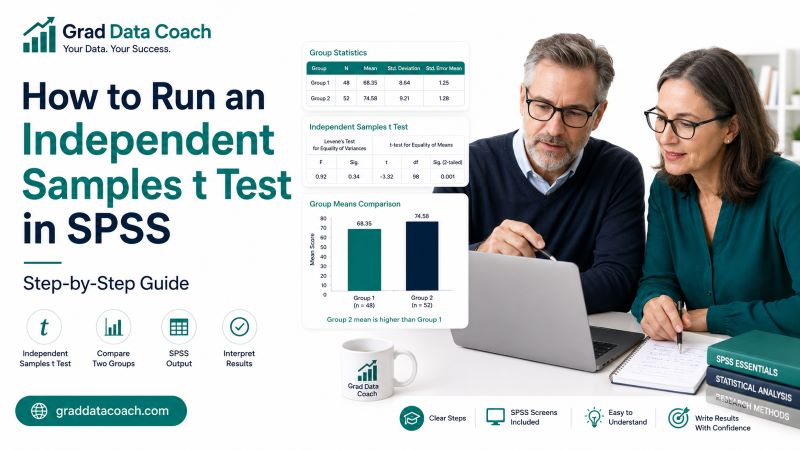
An independent samples t test helps you determine whether the mean of a numerical variable differs between two separate groups. Although SPSS can run the test in a few clicks, you still need to select the correct variables, define the groups properly, choose the right output row, and understand what the results mean.
This guide shows you how to run an independent samples t test in SPSS step by step. You will learn how to prepare your data, check the main assumptions, run the analysis, and interpret the Group Statistics and Independent Samples Test tables. We will also cover Levene’s test, the p value, mean difference, confidence interval, and effect size.
By the end, you should be able to run the test and explain the result clearly.
When Should You Use an Independent Samples t Test?
Use an independent samples t test when you want to compare the mean of one numerical variable between two separate groups.
For example, you could use the test to compare:
- Exam scores. Compare students taught using two different teaching methods.
- Stress scores. Compare full-time and part-time students.
- Blood pressure. Compare a treatment group with a control group.
- Satisfaction scores. Compare customers receiving two different services.
- Performance scores. Compare employees from two independent departments.
The word independent is important. Each participant should belong to only one of the two groups.
If you measure the same participants twice, such as before and after an intervention, you would normally use a paired samples t test instead.
Likewise, if you have three or more independent groups, a one-way ANOVA may be more suitable.
What Variables Do You Need?
An independent samples t test requires two main variables:
- Grouping variable. A categorical variable that identifies the two groups.
- Test variable. A numerical variable whose mean you want to compare.
Suppose a researcher wants to compare exam scores between students using a standard study method and students using a guided study method.
The variables might look like this:
| Variable | Role | Example |
|---|---|---|
| Study method | Grouping variable | 1 = Standard, 2 = Guided |
| Exam score | Test variable | Numerical exam scores |
The grouping variable tells SPSS which participants belong together. The test variable contains the scores whose means you want to compare.
Before running the analysis, make sure that the codes used for your groups are correct. A simple coding mistake can lead to confusing output later.
How Should Your Data Be Arranged in SPSS?
Each row in the dataset should normally represent one participant, while the variables appear in separate columns.
For example:
| ID | Method | Exam_Score |
|---|---|---|
| 1 | 1 | 72 |
| 2 | 1 | 68 |
| 3 | 1 | 81 |
| 4 | 2 | 85 |
| 5 | 2 | 79 |
| 6 | 2 | 88 |
In this example:
Method = 1represents the standard study group.Method = 2represents the guided study group.Exam_Scorecontains the numerical outcome.
You should not normally place the scores for Group 1 in one column and Group 2 in another column for this procedure.
It also helps to add meaningful Value Labels in Variable View. Instead of seeing only 1 and 2 in your output, SPSS can then display labels such as Standard Study and Guided Study.
This makes the tables much easier to interpret.
Check the Main Assumptions Before Running the Test
Before interpreting the independent samples t test, check whether the test reasonably fits your data.
The main assumptions include:
- Independent observations. Each participant should appear in only one group.
- Numerical outcome variable. The dependent variable should be quantitative.
- Two independent groups. The grouping variable should contain the two groups you want to compare.
- No serious outliers. Extreme values can have a large effect on the mean and t statistic.
- Approximate normality. The numerical outcome should be reasonably distributed within each group, especially when sample sizes are small.
- Equality of variances for the pooled test. The traditional version assumes similar population variances.
You do not need perfect data for every assumption. However, serious outliers or very unusual distributions deserve further investigation.
Descriptive statistics and boxplots can help you understand the data before running the test. If you need help with that step, see our guide on how to run descriptive statistics in SPSS.
Example Used in This Tutorial
We will use a simple example throughout the guide.
A researcher wants to know whether students using a guided study method achieve different exam scores from students using the standard study method.
The study includes:
- Standard study group: n = 30.
- Guided study group: n = 32.
The variables are:
- Method. 1 = Standard study and 2 = Guided study.
- Exam_Score. Final numerical exam score.
The hypotheses are:
H₀: The mean exam score is the same for the two groups.
H₁: The mean exam score differs between the two groups.
We will use a significance level of α = .05.
Now we can run the test in SPSS.
Step 1: Open the Independent-Samples T Test Window
From the SPSS menu, go to:
Analyze → Compare Means → Independent-Samples T Test
Depending on your SPSS version, you may instead see:
Analyze → Compare Means and Proportions → Independent-Samples T Test
The dialog box will contain two important areas:
- Test Variable(s)
- Grouping Variable
The Test Variable(s) box is for the numerical outcome. The Grouping Variable box is for the variable that identifies the two groups.
For this example, we will use Exam_Score as the test variable and Method as the grouping variable.
Step 2: Add the Test Variable
Select Exam_Score from the variable list and move it into the Test Variable(s) box.
This tells SPSS which numerical variable you want to compare between the groups.
You can technically include several numerical variables in this box. SPSS would then run a separate t test for each one.
However, if you are new to the procedure, it is often easier to analyze one outcome at a time. This allows you to understand each result clearly before moving on to another variable.
Make sure you do not accidentally place the categorical group variable in the Test Variable(s) box.
Remember:
Test Variable = numerical outcome.
Step 3: Add the Grouping Variable
Next, select Method and move it into the Grouping Variable box.
SPSS now knows which variable identifies the groups, but it still needs to know which values represent the two groups you want to compare.
You may see something similar to:
Method(? ?)
This simply means the groups have not yet been defined.
Click Define Groups to continue.
Step 4: Define the Two Groups
In the Define Groups window, enter the codes used in your dataset.
For this example:
- Group 1: 1
- Group 2: 2
Then click Continue.
If your groups are coded 0 and 1, enter those values instead. The numbers must match the codes in your actual dataset.
Before continuing, check your Value Labels if you cannot remember what each number represents.
The order also matters when interpreting the mean difference. SPSS normally calculates the difference based on the order of the groups you define. Reversing the order can therefore change a positive difference into a negative one, even though the statistical significance remains the same.
Step 5: Review the Available Options
For a basic independent samples t test, the default settings are often sufficient.
However, depending on your SPSS version, you may also see options for:
- Confidence interval. SPSS commonly uses a 95% confidence interval.
- Missing values. Control how missing observations are handled.
- Effect sizes. Some recent versions can estimate effect sizes directly.
- Bootstrap. Available in some installations for additional estimation procedures.
If your version includes Estimate effect sizes, select it when you want SPSS to calculate an effect size such as Cohen’s d.
For most dissertations and research papers, a 95% confidence interval is appropriate unless your analysis plan specifies something different.
After checking the settings, return to the main dialog box.
Step 6: Click OK to Run the Test
Click OK.
SPSS will send the results to the Output Viewer.
You will normally see at least two important tables:
- Group Statistics
- Independent Samples Test
If you requested effect sizes, you may also see an Independent Samples Effect Sizes table.
Do not start with the p value.
First, examine the Group Statistics table. This confirms the sample size, mean, and standard deviation for each group. It also helps you identify which group has the higher sample mean.
Once those values make sense, move to the Independent Samples Test table.
How to Interpret the Group Statistics Table
Suppose SPSS gives the following output:
| Group | N | Mean | Std. Deviation |
|---|---|---|---|
| Standard study | 30 | 73.10 | 7.10 |
| Guided study | 32 | 78.40 | 6.20 |
We can immediately see that:
- The standard study group has 30 students.
- The guided study group has 32 students.
- The standard study mean is 73.10.
- The guided study mean is 78.40.
- The guided study group has the higher sample mean.
The observed difference between the means is:
78.40 − 73.10 = 5.30 points
At this stage, you can say that the two sample means are different. However, you cannot yet say that the difference is statistically significant.
For that, you need the Independent Samples Test table.
How to Interpret Levene’s Test
The Independent Samples Test table includes Levene’s Test for Equality of Variances.
SPSS also provides two t-test rows:
- Equal variances assumed
- Equal variances not assumed
A common introductory rule is:
- If Levene’s p > .05, use Equal variances assumed.
- If Levene’s p ≤ .05, use Equal variances not assumed.
Suppose Levene’s test gives:
F = 0.62, p = .434
Because .434 is greater than .05, the standard classroom interpretation is that there is not enough evidence of unequal variances. We would therefore read the Equal variances assumed row.
The unequal-variance row is often associated with Welch’s t test and becomes useful when equal variances cannot reasonably be assumed.
Do not choose a row simply because it produces the smaller p value. Your choice should follow the statistical assumptions and analysis method.
How to Interpret the t Statistic and p Value
Now read across the appropriate row.
Suppose SPSS gives:
- t = 3.14
- df = 60
- p = .003
We compare the p value with our significance level:
.003 < .05
Therefore, the result is statistically significant.
We reject the null hypothesis and conclude that the data provide evidence of a difference in mean exam scores between the two groups.
Next, return to the Group Statistics table to determine the direction of that difference.
The guided study group had the higher mean:
- Guided study: M = 78.40
- Standard study: M = 73.10
Therefore, students in the guided study group scored significantly higher in this example.
Do not interpret the p value alone. The group means tell you what happened, while the p value tells you about the statistical evidence for the difference.
What Does the Mean Difference Mean?
SPSS also reports the Mean Difference.
For our example:
Mean Difference = 5.30
This represents the difference between the two group means based on the order used in the analysis.
In this case:
78.40 − 73.10 = 5.30
Therefore, guided study students scored an average of 5.30 points higher than standard study students.
If the groups were entered in the opposite order, SPSS could report −5.30 instead.
That would not mean the analysis is wrong. It would simply mean the subtraction was reversed.
Always interpret the mean difference together with the group means rather than looking at the sign alone.
How to Interpret the 95% Confidence Interval
Suppose SPSS reports the following 95% confidence interval for the mean difference:
95% CI [1.92, 8.68]
This gives a range of plausible values for the population mean difference under the statistical model.
Notice that the interval does not contain zero.
This is consistent with the statistically significant two-sided t test at α = .05.
The confidence interval also tells you more than the p value alone because it gives an indication of the size and precision of the estimated difference.
A very wide interval suggests more uncertainty, while a narrower interval suggests greater precision.
When reporting the confidence interval, make sure your reader knows what it refers to. In this case, it is the confidence interval for the difference between the two group means.
How to Interpret Cohen’s d
If your SPSS version calculates effect sizes, you may also receive a value for Cohen’s d.
Suppose:
d = 0.80
Cohen’s d describes the difference between the group means in standardized units.
Traditional reference values often describe approximately:
- 0.20 as a small effect.
- 0.50 as a medium effect.
- 0.80 as a large effect.
These are only rough guidelines. The practical importance of an effect depends on your research area and the outcome being measured.
The p value and Cohen’s d answer different questions.
The p value helps you assess statistical evidence against the null hypothesis, while Cohen’s d helps describe how large the standardized group difference is.
For a complete interpretation, consider the means, confidence interval, p value, and effect size together.
What If Levene’s Test Is Significant?
Suppose Levene’s test gives:
p = .018
Because .018 is below .05, the equal-variance assumption becomes questionable under the common introductory approach.
You would then read the Equal variances not assumed row.
For example:
t(54.37) = 3.05, p = .004
Notice that the degrees of freedom are now a decimal rather than a whole number.
That is normal.
The unequal-variance procedure adjusts the degrees of freedom because the two group variances are not treated as equal.
Do not change 54.37 to 54 simply because you expected a whole-number df.
Also remember that a significant Levene’s test does not automatically mean that you cannot compare the two groups. The unequal-variance result is provided for this situation.
Other issues, such as serious outliers or strong skewness, should still be examined separately.
What If the t Test Is Not Statistically Significant?
Suppose the result is:
t(60) = 1.21, p = .231
Because .231 is greater than .05, the result is not statistically significant.
You would fail to reject the null hypothesis.
This does not prove that the two group means are exactly equal. Instead, it means the study did not provide sufficient statistical evidence of a difference at the chosen significance level.
You should still examine:
- Group means.
- Standard deviations.
- Mean difference.
- Confidence interval.
- Effect size.
- Sample sizes.
A nonsignificant result is still a research result.
Avoid repeatedly changing analyses simply to obtain p < .05. The statistical method should follow your research question and data, not the result you hoped to find.
Complete Independent Samples t Test Interpretation
Suppose the final SPSS results are:
| Statistic | Result |
|---|---|
| Standard study mean | 73.10 |
| Standard study SD | 7.10 |
| Guided study mean | 78.40 |
| Guided study SD | 6.20 |
| Levene’s p | .434 |
| t | 3.14 |
| df | 60 |
| p | .003 |
| Mean difference | 5.30 |
| 95% CI | [1.92, 8.68] |
| Cohen’s d | 0.80 |
The guided study group had the higher mean exam score. Levene’s test did not provide evidence of unequal variances at α = .05, so we use the equal-variances-assumed row in this introductory example.
The t test was statistically significant because p = .003 is below .05. Therefore, the data provide evidence that mean exam scores differed between the two teaching groups.
The observed mean difference was 5.30 points, and Cohen’s d = 0.80 indicates a substantial standardized difference using conventional reference values.
Now that you understand the output, the next step is writing the result correctly in your paper.
How to Report Your SPSS t-Test Results in APA Style
Once the analysis is complete, do not simply paste the SPSS tables into your dissertation, thesis, or research paper.
Your results paragraph should normally identify the test, report the group means and standard deviations, give the t statistic and degrees of freedom, report the p value, and include an effect size or confidence interval when appropriate.
Using our example, you could write:
An independent samples t test was conducted to compare exam scores between students using guided study and students using the standard study method. Students in the guided study group (M = 78.40, SD = 6.20) achieved significantly higher exam scores than students in the standard study group (M = 73.10, SD = 7.10), t(60) = 3.14, p = .003, d = 0.80, 95% CI [1.92, 8.68].
For a complete guide with APA templates, significant and nonsignificant examples, formatting rules, Cohen’s d, confidence intervals, and APA tables, continue with our guide on how to report an independent samples t test in APA style.
That guide shows you exactly how to turn the SPSS values into a finished results section.
SPSS Syntax for an Independent Samples t Test
You can also run the analysis using SPSS syntax.
Suppose:
methodis the grouping variable.exam_scoreis the numerical outcome.- Group 1 is coded 1.
- Group 2 is coded 2.
You can use:
T-TEST GROUPS=method(1 2)
  /VARIABLES=exam_score
  /CRITERIA=CI(.95).
This command compares exam scores between groups 1 and 2 and requests a 95% confidence interval.
You do not need to learn syntax before using the independent samples t test. The SPSS menus are perfectly suitable for running the procedure.
However, syntax becomes useful when working on a larger dissertation or thesis because it creates a record of the exact analysis you performed. You can also repeat the procedure without rebuilding every dialog box.
If you prefer working through SPSS visually, continue using the menu steps from this guide.
Common Mistakes When Running an Independent Samples t Test
Several simple mistakes can lead to confusing SPSS output.
Watch for the following:
- Using the wrong t test. Two independent groups require an independent samples t test, while repeated observations normally require a paired samples test.
- Reversing the variables. Your numerical outcome belongs in Test Variable(s), while your categorical group variable belongs in Grouping Variable.
- Forgetting to define the groups. SPSS needs the actual group codes before it can run the comparison.
- Entering incorrect group codes. Check the values and Value Labels in your dataset.
- Ignoring extreme values. Serious outliers can strongly influence group means.
- Reading only the p value. Also consider the means, mean difference, confidence interval, and effect size.
- Choosing the row that looks better. Use the row appropriate for your statistical assumptions.
- Reporting p = .000. Write p < .001 instead.
- Calling a nonsignificant result “no difference.” Say that the difference was not statistically significant.
- Copying SPSS output directly into your paper. Turn the relevant results into clear APA-style reporting.
Independent Samples t Test SPSS Checklist
Before you finish, make sure you can answer these questions:
- Do I have exactly two independent groups?
- Is my outcome variable numerical?
- Are my group codes correct?
- Is each participant in only one group?
- Have I checked for obvious data errors and serious outliers?
- Do the group sample sizes look correct?
- Which group has the higher mean?
- Which SPSS t-test row am I using?
- What is the t statistic?
- What are the degrees of freedom?
- What is the p value?
- What is the mean difference?
- What does the confidence interval show?
- What does the effect size suggest?
- Can I explain the finding in words?
If you can answer these questions, you are doing more than simply running the test. You understand what the analysis is showing.
Need Help Running Your t Test in SPSS?
A tutorial can show you where to click, but your own research may raise questions that a generic example cannot answer. You may be unsure whether an independent samples t test is the correct analysis, whether your assumptions are reasonable, which SPSS row you should use, or why your output looks different from the example above.
During a private 1:1 data analysis coaching session, you can bring your own SPSS dataset, output, research questions, or supervisor comments. We can work through the test together on your actual research and explain each step as we go.
The goal is not simply to run SPSS for you. You should understand why the test fits your study, how to perform it correctly, and what the results mean.
Book a 1:1 SPSS Coaching Session →
If you are working on a dissertation or thesis and need help with the wider analysis, you can also explore our dissertation data analysis help.
Frequently Asked Questions
Go to Analyze → Compare Means → Independent-Samples T Test. In some newer versions, the menu may appear under Compare Means and Proportions.
Place the numerical outcome whose mean you want to compare in the Test Variable(s) box. Examples include exam score, stress score, blood pressure, or satisfaction score.
Use the variable that identifies the two separate groups. For example, 1 could represent the control group and 2 the treatment group.
In a common introductory workflow, use the Equal variances assumed row when the equal-variance assumption is reasonable and the Equal variances not assumed row when it is not. The choice should follow your statistical method rather than which row gives the smaller p value.
Sig. (2-tailed) is the two-sided p value in older SPSS output. Compare it with your chosen significance level, such as .05, when testing a two-sided hypothesis.
Recent versions of SPSS can provide effect-size estimates for an independent samples t test when the relevant option is available and selected. If your version does not include that option, Cohen’s d can be calculated separately.