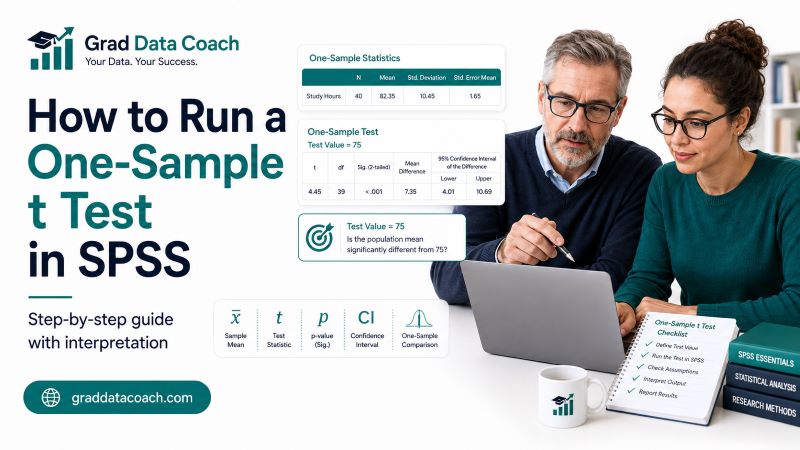
A one-sample t test helps you determine whether the mean of one numerical variable differs from a known or hypothesized value. SPSS can perform the calculation quickly, but you still need to enter the correct test value, check that the test fits your data, and understand what the output means.
In this guide, you will learn how to run a one-sample t test in SPSS step by step. We will cover data setup, assumptions, the SPSS menu options, and how to interpret the One-Sample Statistics and One-Sample Test tables. You will also learn how to understand the t statistic, p value, mean difference, confidence interval, and effect size.
By the end, you should be able to run the test and explain what the result means for your research.
When Should You Use a One-Sample t Test?
Use a one-sample t test when you have one numerical variable and want to compare its sample mean with a specific value.
That comparison value may come from a national benchmark, an established standard, a previous population value, or a value stated in your research hypothesis.
For example, you could test whether:
- Exam scores differ from a national benchmark. Compare your students’ mean score with a benchmark of 75.
- Average working hours differ from a standard. Compare employees’ weekly hours with 40 hours.
- Mean blood pressure differs from a reference value. Compare your sample mean with a clinical benchmark.
- Average satisfaction differs from a scale midpoint. Compare a mean satisfaction score with 3 on a five-point scale when such a comparison is substantively justified.
- Average product weight differs from a target. Compare sampled packages with the stated production weight.
The one-sample t test compares one sample mean with one fixed value. If you are comparing two separate groups, you need an independent samples t test instead.
What Is the Test Value in SPSS?
The Test Value is the number you want to compare your sample mean against.
Suppose a university considers 75 points the national benchmark for an examination. You collect exam scores from 25 students and want to know whether their average score differs from 75.
In SPSS:
- Your variable is Exam_Score.
- Your Test Value is 75.
The hypotheses for a two-sided test would be:
H₀: μ = 75
H₁: μ ≠ 75
SPSS then examines whether the difference between your sample mean and 75 is large enough, relative to the variation in the sample, to provide statistical evidence that the population mean differs from 75.
The test value should come from your research question or a meaningful external reference. Do not choose a test value after looking at your sample mean simply because it produces an interesting result.
How Should Your Data Be Arranged in SPSS?
A one-sample t test requires a simple dataset because you are analyzing only one numerical variable at a time.
For example:
| ID | Exam_Score |
|---|---|
| 1 | 82 |
| 2 | 76 |
| 3 | 71 |
| 4 | 84 |
| 5 | 79 |
| 6 | 73 |
Each row represents one participant, while Exam_Score contains the numerical values you want to compare with the test value.
Unlike an independent samples t test, you do not need a grouping variable because there are no separate groups to define.
Before running the test, check that the variable is stored as numeric in SPSS. You should also review the values for obvious data-entry problems. For example, a score of 780 in an examination marked out of 100 would need investigation before continuing.
If you want to examine the mean, standard deviation, minimum, maximum, or distribution first, see our guide on how to run descriptive statistics in SPSS.
Check the Assumptions Before Running the Test
The one-sample t test works best when your data reasonably meet its assumptions.
Check the following:
- Numerical outcome. Your variable should be measured numerically.
- Independent observations. Each observation should come from a separate participant or independent unit.
- No serious outliers. Extreme values can strongly affect the sample mean and t statistic.
- Approximate normality. The variable should be reasonably normally distributed, particularly when the sample is small.
- Appropriate sampling. Your sample should provide a reasonable basis for making an inference about the population of interest.
The t test is fairly robust to moderate departures from normality, especially as sample size increases, but serious outliers or severe skewness deserve attention. IBM similarly notes the normality assumption while describing the procedure as fairly robust to departures from normality.
Do not treat assumption checking as a search for a perfect dataset. The aim is to determine whether the test provides a reasonable analysis for your research.
Example Used in This Tutorial
Suppose a researcher wants to know whether students at one college perform differently from a national examination benchmark of 75 points.
A sample of 25 students gives:
- Sample size, n = 25.
- Sample mean, M = 78.40.
- Standard deviation, SD = 6.20.
- Test value = 75.
- Significance level, α = .05.
The hypotheses are:
H₀: μ = 75
H₁: μ ≠ 75
The sample mean is 3.40 points higher than the benchmark, but that descriptive difference alone does not tell us whether it is statistically significant.
We will now use SPSS to test the difference.
Step 1: Open the One-Sample T Test Window
From the SPSS menu, go to:
Analyze → Compare Means → One-Sample T Test
In newer SPSS versions, you may instead see:
Analyze → Compare Means and Proportions → One-Sample T Test
IBM documents both the traditional menu route and the newer Compare Means and Proportions location in recent versions.
The One-Sample T Test dialog box will open.
You will see:
- A list of variables on the left.
- A Test Variable(s) box.
- A Test Value field.
The procedure is simpler than an independent samples t test because you do not need to define any groups.
Step 2: Add Your Test Variable
Select the numerical variable you want to test.
For our example, choose:
Exam_Score
Move it into the Test Variable(s) box.
You can technically select more than one numerical variable. SPSS will run a separate one-sample t test for each selected variable using the same test value.
For beginners, however, working with one variable at a time often makes the output easier to understand.
Before continuing, confirm that the variable you selected is the actual outcome you want to compare with the benchmark.
For example, you would not place participant ID numbers in this box simply because they are numeric. The numbers need to represent a meaningful quantitative variable.
Step 3: Enter the Test Value
Find the Test Value box.
Enter:
75
This tells SPSS that the null hypothesis assumes a population mean of 75.
It is important to understand what SPSS is doing here. The software is not comparing your sample with another dataset containing scores of 75. Instead, it is asking whether your observed sample mean differs significantly from the fixed value you entered.
For our example:
Sample mean = 78.40
Test value = 75
Therefore, the observed difference is:
78.40 − 75 = 3.40
The one-sample t test evaluates whether that 3.40-point difference is large relative to the sampling variability.
Step 4: Review the Options
Click Options if you want to review the confidence interval or missing-data settings.
SPSS normally uses a 95% confidence interval by default. IBM’s current documentation confirms that you can change this confidence level if your analysis requires a different value.
For most research projects using α = .05 and a two-sided test, keeping the default 95% confidence interval is appropriate.
You may also see options for handling missing values if you have selected several test variables.
Depending on your SPSS version, the main dialog may also contain an Estimate effect sizes option. Recent versions of SPSS can automatically estimate standardized effect sizes for the one-sample t test.
For this example, keep the 95% confidence interval and select effect-size estimation if it is available.
Then click Continue.
Step 5: Click OK to Run the Test
Click OK in the One-Sample T Test dialog box.
SPSS will open the Output Viewer.
You should see two main tables:
- One-Sample Statistics
- One-Sample Test
If you requested effect sizes, you may also see a One-Sample Effect Sizes table.
Start with the One-Sample Statistics table rather than jumping directly to the p value. This first table confirms the sample size, mean, and variability of the variable you tested.
After checking that those values make sense, move to the One-Sample Test table.
This order helps you understand what SPSS is actually comparing.
How to Interpret the One-Sample Statistics Table
Suppose SPSS gives:
| N | Mean | Std. Deviation | Std. Error Mean |
|---|---|---|---|
| 25 | 78.40 | 6.20 | 1.24 |
Each value has a specific meaning:
- N = 25. SPSS used 25 valid observations.
- Mean = 78.40. The average exam score in the sample is 78.40.
- Std. Deviation = 6.20. Scores vary around the mean with a standard deviation of 6.20.
- Std. Error Mean = 1.24. This estimates the sampling variability of the sample mean.
The first descriptive comparison is therefore:
78.40 − 75 = 3.40
The sample mean is 3.40 points above the benchmark.
However, we still do not know whether that difference is statistically significant. For that, move to the One-Sample Test table.
How to Interpret the One-Sample Test Table
The One-Sample Test table contains the main hypothesis-test results.
For our example, suppose SPSS reports approximately:
- t = 2.74.
- df = 24.
- Two-sided p = .011.
- Mean Difference = 3.40.
- 95% CI of the Difference [0.84, 5.96].
The table may also display the Test Value = 75 at the top.
The important values answer different questions:
- t. How large the observed difference is relative to its standard error.
- df. Degrees of freedom, which are n − 1 for a one-sample t test.
- p. Statistical evidence against the null hypothesis.
- Mean Difference. Sample mean minus the test value.
- Confidence Interval. A range for the population mean difference.
You should interpret these values together rather than looking only at the p value.
How to Interpret the t Statistic and p Value
For our example:
t(24) = 2.74, p = .011
We compare the two-sided p value with α = .05.
Because:
.011 < .05
the result is statistically significant.
We reject the null hypothesis that the population mean equals 75 and conclude that the data provide evidence that the mean exam score differs from the benchmark.
Next, look at the sample mean:
Sample mean = 78.40
Since 78.40 is higher than 75, the observed difference is in the positive direction.
Therefore, the students scored significantly higher than the benchmark in this example.
The p value tells you whether there is statistical evidence of a difference, while the sample mean and mean difference tell you the direction of that difference.
What Does the Mean Difference Mean?
SPSS reports the Mean Difference in the One-Sample Test table.
It is calculated as:
Sample mean − Test value
For our example:
78.40 − 75 = 3.40
Therefore:
Mean Difference = 3.40
A positive value means the sample mean is above the test value.
A negative value means the sample mean is below the test value.
For example, if the sample mean had been 72:
72 − 75 = −3
SPSS would report a negative mean difference.
A negative value does not mean the analysis is wrong. It simply shows the direction of the difference.
Always interpret the mean difference together with the sample mean and the test value.
How to Interpret the 95% Confidence Interval
For our example, suppose SPSS reports:
95% CI [0.84, 5.96]
This is the confidence interval for the difference between the population mean and the test value, not the raw exam-score mean itself.
The entire interval is above zero.
This is consistent with the statistically significant two-sided test because zero represents no difference between the population mean and the benchmark.
If the confidence interval included zero, such as:
95% CI [−1.20, 4.30]
that would be consistent with a nonsignificant two-sided result at α = .05.
The confidence interval also helps you assess precision. Instead of only knowing that the mean differs from 75, you get a range of values that are compatible with the estimated mean difference under the statistical model.
IBM’s SPSS documentation likewise defines this output as the confidence interval for the difference from the hypothesized test value.
How to Interpret Cohen’s d
If your SPSS version provides effect-size estimates, you may see Cohen’s d in a separate table.
For our example:
Cohen’s d ≈ 0.55
The one-sample Cohen’s d compares the mean difference with the sample standard deviation.
Traditional reference values are often described as:
- About 0.20 = small.
- About 0.50 = medium.
- About 0.80 = large.
These should be treated as rough guidelines rather than universal cutoffs.
In our example, d ≈ 0.55 indicates a moderate standardized difference using those conventional reference points.
Effect size adds information that the p value cannot provide. A p value tells you about statistical evidence, while Cohen’s d helps describe the magnitude of the difference.
Recent SPSS versions automate t-test effect-size estimation when the option is selected.
One-Sided vs Two-Sided p Values in SPSS
Newer SPSS output may show both:
- One-Sided p
- Two-Sided p
Which one you use depends on the hypothesis you specified before analyzing the data.
Use the two-sided p value when your alternative hypothesis asks whether the population mean is simply different:
H₁: μ ≠ 75
Use a one-sided test only when you had a justified directional hypothesis such as:
H₁: μ > 75
or:
H₁: μ < 75
Do not choose the one-sided p value after seeing which direction your sample mean moved. The direction should come from your research hypothesis in advance.
Older SPSS versions may label the two-sided value as Sig. (2-tailed) instead. Newer versions explicitly display one-sided and two-sided probabilities.
For our example, the research question asks whether the score differs from 75, so we use the two-sided p value.
What If the Result Is Not Statistically Significant?
Suppose another study gives:
t(24) = 1.12, p = .274
Because:
.274 > .05
the result is not statistically significant at α = .05.
You would fail to reject the null hypothesis.
This does not prove that the population mean is exactly equal to the test value. Instead, the sample does not provide sufficient evidence of a difference at the chosen significance level.
You should still examine:
- Sample mean.
- Standard deviation.
- Mean difference.
- Confidence interval.
- Effect size.
- Sample size.
A nonsignificant result is still a valid research result.
Avoid repeatedly changing the test value or deleting observations simply to obtain statistical significance. The test value should come from the research question, and your conclusions should follow the data.
Complete One-Sample t Test Interpretation
Our example gives:
| Statistic | Result |
|---|---|
| Sample size | 25 |
| Sample mean | 78.40 |
| Standard deviation | 6.20 |
| Test value | 75 |
| Mean difference | 3.40 |
| t | 2.74 |
| df | 24 |
| Two-sided p | .011 |
| 95% CI | [0.84, 5.96] |
| Cohen’s d | 0.55 |
The sample mean of 78.40 is 3.40 points higher than the benchmark of 75.
The one-sample t test is statistically significant because p = .011 is below .05. Therefore, we reject the null hypothesis and conclude that the population mean is unlikely to equal 75 based on this sample.
Since the observed mean is higher than 75, the difference is in the positive direction.
The 95% confidence interval for the difference does not include zero, which is consistent with the significant result. Cohen’s d also suggests a moderate standardized difference using conventional reference values.
This gives us a complete interpretation rather than relying only on the p value.
How to Report a One-Sample t Test in Your Results
Once you understand the output, you can turn the SPSS results into a clear results statement.
A simple example is:
An one-sample t test was conducted to determine whether the mean exam score differed from the national benchmark of 75. Students had a mean score of 78.40 (SD = 6.20), which was significantly higher than the benchmark, t(24) = 2.74, p = .011, d = 0.55, 95% CI [0.84, 5.96].
One small correction is important here: grammatically, write “A one-sample t test”, not “An one-sample t test.”
So the final version should read:
A one-sample t test was conducted to determine whether the mean exam score differed from the national benchmark of 75. Students had a mean score of 78.40 (SD = 6.20), which was significantly higher than the benchmark, t(24) = 2.74, p = .011, d = 0.55, 95% CI [0.84, 5.96].
If your university uses APA style, the exact presentation may also depend on your reporting requirements.
SPSS Syntax for a One-Sample t Test
You can also run the analysis using SPSS syntax.
Suppose:
exam_scoreis your numerical variable.- The test value is 75.
Use:
T-TEST
  /TESTVAL=75
  /VARIABLES=exam_score
  /CRITERIA=CI(.95).
This tells SPSS to compare the mean exam score with 75 and produce a 95% confidence interval.
IBM documents the basic one-sample syntax using the TESTVAL and VARIABLES subcommands.
You do not need syntax to perform the analysis successfully. The menu method works perfectly well for beginners.
However, syntax becomes useful in a dissertation or larger research project because it creates a reproducible record of your analysis and makes it easier to repeat the same procedure later.
Common Mistakes When Running a One-Sample t Test
Most errors happen because the test value or interpretation is wrong rather than because SPSS performed the calculation incorrectly.
Watch for these common mistakes:
- Choosing an arbitrary test value. The comparison value should come from your research question or a meaningful benchmark.
- Using the wrong test. A one-sample t test compares one sample mean with one fixed value, not two groups.
- Testing a categorical variable. The outcome should be numerical.
- Ignoring extreme outliers. Unusual values can strongly affect the sample mean.
- Looking only at the p value. Also interpret the mean, mean difference, confidence interval, and effect size.
- Misreading a negative t value. A negative sign usually means the sample mean is below the test value.
- Reporting p = .000. If SPSS displays .000, report p < .001.
- Using a one-sided p value after seeing the result. The directional hypothesis should be decided before analyzing the data.
- Saying a nonsignificant result proves equality. Failing to reject H₀ does not prove the population mean exactly equals the test value.
- Copying raw SPSS tables into the paper. Report the relevant statistics clearly in your own results section.
One-Sample t Test SPSS Checklist
Before finishing the analysis, make sure you can answer these questions:
- Is my outcome variable numerical?
- Are my observations independent?
- Is the test value meaningful and justified?
- Have I checked for obvious data errors and serious outliers?
- What is the sample mean?
- What is the standard deviation?
- How far is the mean from the test value?
- What is the t statistic?
- What are the degrees of freedom?
- Am I using the correct one-sided or two-sided p value?
- Is the result statistically significant?
- What does the mean difference mean?
- Does the confidence interval include zero?
- What does the effect size suggest?
- Can I explain the finding without relying only on the p value?
If you can answer these questions, you understand the test rather than simply knowing how to click through the SPSS menu.
Need Help Running a One-Sample t Test in SPSS?
The SPSS procedure itself is short, but your own research may be less straightforward than the example in this guide. You might be unsure whether a one-sample t test is the correct method, what value you should test against, whether your assumptions are reasonable, or how to interpret an unexpected result.
During a private 1:1 data analysis coaching session, you can bring your own SPSS dataset, statistical output, research questions, or supervisor feedback. We can work through the analysis together and explain each step using your actual research.
The aim is not simply to tell you what to click. You should understand why the test fits your study, how to perform it correctly, and what the SPSS results mean.
Book a 1:1 SPSS Coaching Session →
If the test forms part of a dissertation or thesis analysis, you can also explore our dissertation data analysis help service. Master’s researchers can find dedicated data analysis help for Master’s students, while doctoral researchers can explore our PhD data analysis help.
Frequently Asked Questions
Go to Analyze → Compare Means → One-Sample T Test. In newer versions of SPSS, you may find it under Analyze → Compare Means and Proportions → One-Sample T Test.
Enter the known or hypothesized population mean that your research question asks you to compare with your sample mean. For example, if you want to compare an exam mean with a benchmark of 75, enter 75.
SPSS calculates Mean Difference as the sample mean minus the test value. A positive value means the sample mean is higher, while a negative value means it is lower.
Use the two-sided p value when your hypothesis asks whether the mean differs from the test value in either direction. Use a one-sided p value only when you specified and justified a directional hypothesis before examining the results.
The degrees of freedom are calculated as n − 1. For example, a sample of 25 observations has 24 degrees of freedom.
Yes. Recent SPSS versions can estimate t-test effect sizes when the effect-size option is selected. Older versions may require you to calculate the effect size separately